iPad photo organizer guide
Organize iPad photos before you delete.
Start with on-device AI categories for screenshots, documents, imports, and family media, then review duplicates, blurry photos, large media, and iCloud-sensitive cleanup choices.
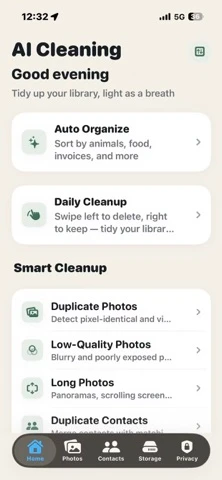
iPad library patterns
iPad cleanup starts with different photo groups.
An iPad is not just a larger iPhone. Many libraries include saved reading screenshots, classroom notes, design references, camera imports, scanned documents, and shared family photos. Those groups need context before any cleanup action.
iPad screenshots often come from PDFs, websites, recipes, lectures, maps, or app layouts. Grouping them first makes cleanup less random.
Receipts, ID cards, invoices, school forms, and travel documents should be reviewed separately from ordinary screenshots.
Camera imports, edited images, saved videos, and duplicate exports can take meaningful storage and need size-aware review.
Review workflow
Sort by context, then review cleanup candidates.
The goal is not to delete faster. The goal is to understand what is in the library, then remove items that are genuinely redundant, low quality, or no longer useful.
iCloud-aware cleanup
Check sync before removing media.
If iCloud Photos is enabled, deleting a photo on iPad can affect the same library on iPhone, Mac, and iCloud.com. A good organizer workflow makes users pause before removing items that may still matter on another device.
Check whether photos came from iPhone sync, camera import, Files, shared albums, or downloads.
Move through AI categories, duplicates, screenshots, blurry shots, and large media without relying on blind bulk actions.
For phone-first cleanup, use the iPhone photo cleaner comparison. For duplicates, use the duplicate photo cleaner guide.
For Simplified Chinese readers, use the iPad 照片整理指南.
How to organize
A practical sequence for iPad photo sorting.
This sequence keeps important items visible while still helping you find easy cleanup wins. It works best when you treat classification as the first pass and deletion as the final decision.
Know whether the iPad is editing a synced library before removing media.
Review people, documents, receipts, food, plants, animals, trips, and saved references.
Move through duplicates, repeated screenshots, blurry photos, large videos, and imported media.
Check important categories again, then remove only the items you understand and no longer need.
FAQ
iPad photo organizer questions.
What is the best way to organize photos on iPad?
Start by grouping the library into meaningful categories, then review likely cleanup groups such as duplicates, screenshots, blurry photos, large videos, and imported media before deleting anything.
Is iPad photo cleanup different from iPhone photo cleanup?
Yes. iPad libraries often include screenshots from reading, document scans, imported camera files, saved design references, and shared family media, so review should account for more than phone snapshots.
What should I check before deleting iPad photos with iCloud Photos enabled?
Check whether iCloud Photos is syncing across devices. Deleting a synced photo on iPad can remove it from other Apple devices, so review important albums and recently deleted recovery options first.
Can AI help sort iPad screenshots and documents?
AI categories can help separate screenshots, receipts, documents, ID cards, food, plants, animals, and people so review starts with context instead of a blind delete list.
Why do large videos deserve a separate review on iPad?
Imported camera clips, screen recordings, and downloaded videos can use far more storage than individual photos. Review their source, backup status, and future value before removing them.