GIF maker app for iPhone
Turn videos and Live Photos into GIFs on iPhone.
Turn videos, Live Photos, or pictures into GIFs. Edit timing, captions, canvas, reverse, and boomerang with on-device processing.
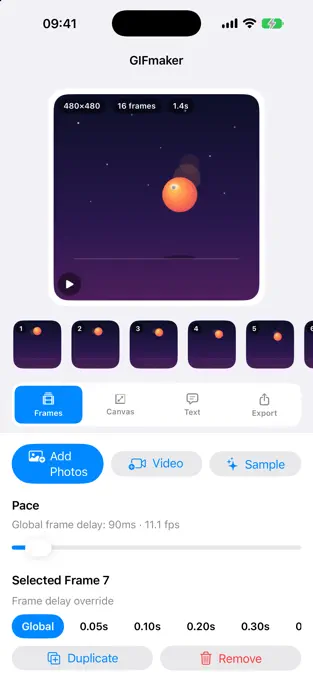
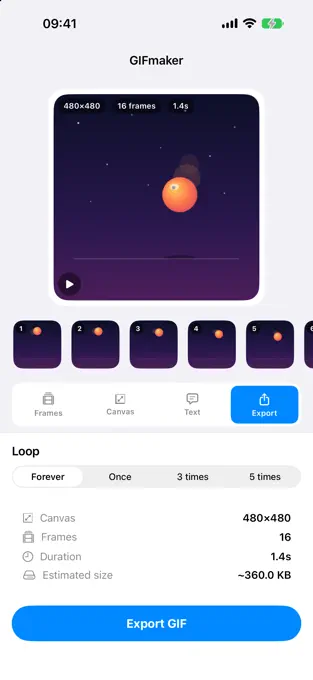
Three ways to start
Use the media you already have.
Build a reaction, product demo, tutorial, or social post without moving your source media to a separate service.
Select still images, arrange the sequence, and preview the animation while you edit.
Import a video, choose the frame rate, and export at up to 1080 pixels in the current release.
Use the motion already captured in a Live Photo as the source for a shareable animation.
Editing controls
Fine-tune the loop instead of accepting a preset.
The controls focus on the parts that determine whether a GIF feels polished: pacing, frame order, captions, composition, and loop direction.
Set each frame's delay independently and watch the result update as an animation.
Drag to reorder frames, duplicate them, reverse the sequence, or create a boomerang loop.
Add captions and adjust color, size, and position for the intended canvas.
Choose 1:1, 4:3, 3:4, 16:9, or 9:16, then control fit and background treatment.
Private by design
Your source media stays on your device.
The current App Store listing states that GIFmaker needs no account and performs its editing without uploads. Apple's product page displays “Data Not Collected” for the developer's privacy disclosure.
Open the app and create without registering for a service.
Photos, videos, and Live Photos are processed locally for the core workflow.
Photo library access is used to choose source media and save the finished GIF.
What the app includes
One iPhone GIF maker for photos, video, and Live Photos.
Choose the source, refine the loop with live preview, and export from the same app. For the complete video workflow, read how to make a GIF on iPhone from video. To compare formats, AI tools, subscriptions, and iOS support, see the best GIF maker apps for iPhone.
Open GIFmaker and select photos, a video, or a Live Photo from your library.
Review the generated frames, reorder the filmstrip, and duplicate or remove frames as needed.
Tune timing, captions, canvas ratio, fit, and reverse or boomerang playback while watching the live preview.
Play the finished loop, confirm its pacing and composition, then save or share the GIF.
Common questions
GIFmaker answers, without the guesswork.
Current product facts were checked against the public App Store listing on October 2, 2026. The US listing is now named GIFmaker: GIF Maker & Editor.
How much does GIFmaker cost?
The US App Store lists GIFmaker at an upfront price of $0.99 when checked on October 15, 2026. It turns photos, videos, and Live Photos into GIFs with frame timing, captions, canvas ratios, reverse, and boomerang playback. Check the local purchase sheet for current pricing.
Can I change the timing of individual GIF frames?
Yes. GIFmaker includes per-frame delay controls, a live preview, and a filmstrip for reordering or duplicating frames.
Does GIFmaker upload my photos or require an account?
No. The current App Store listing states that editing happens on device with no account and no uploads, and its privacy label says Data Not Collected.
Which iOS version does GIFmaker require?
GIFmaker version 1.2.0 requires iOS 17.0 or later.
How do I share a GIF in WeChat without losing the animation?
Save the original GIF to Photos first, then select it from Photos inside the WeChat chat. This keeps the animation intact.