Make a GIF on iPhone
Create an animated GIF on iPhone from photos or video.
Use Shortcuts to make a GIF from photos, or turn a video or Live Photo into a GIF with frame controls. Photos Loop is a quick effect, not a .gif export.
The short answer
Choose the output before choosing the method.
For a looping Live Photo, use Photos Loop or Bounce. For a .gif file from still photos, use Apple's Shortcuts Make GIF action. For video, Live Photos, or detailed frame editing, export a GIF with GIFmaker.
Apple's Live Photos guide explains the built-in Loop and Bounce effects.
Repeats a Live Photo continuously. It is fast, but it does not provide frame-by-frame editing.
Plays the motion forward and backward. It can hide a harsh transition without creating a custom sequence.
Turn selected still photos into a shareable .gif file without a separate editor.
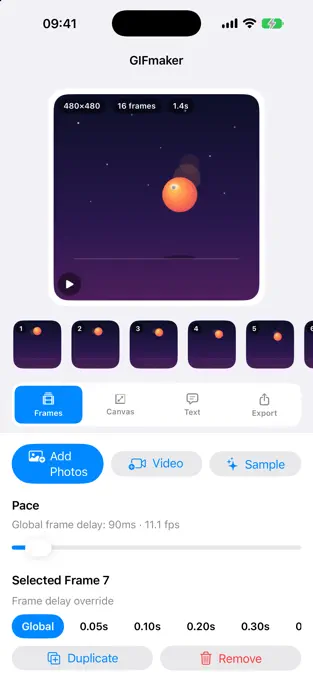
Use this for a video or Live Photo, custom frame timing, captions, canvas ratios, or reverse playback.
Method comparison
Photos effect, Shortcuts, or a GIF editor?
The best method depends on where the animation will be used and how much control it needs.
Built-in GIF file
Make a GIF from photos with Shortcuts.
Open Shortcuts and build a workflow with Select Photos, Make GIF, then Save File. Choose several still photos, run the shortcut, and save the result to Files. Open the saved file to check its animation and .gif extension.
Apple documents the Make GIF action and Save File action in Shortcuts.
Add Select Photos and enable multiple selection. Choose the still images when you run the shortcut.
Add Make GIF after Select Photos and preview the animated result.
Add Save File after Make GIF, choose a location in Files, and confirm the saved file is a .gif.
Five-step workflow
How to turn a video into a GIF on iPhone.
Start with the shortest useful source. Every extra second creates more frames, increases the file size, and makes a clean loop harder to build.
Open GIFmaker and choose the short video or Live Photo that contains the action you want to loop.
Review the generated frames and remove unneeded frames so the loop starts and ends close to the action.
Adjust frame delays, reorder the filmstrip, and choose normal, reverse, or boomerang playback while watching the live preview.
Choose an aspect ratio and fit, then add a short text overlay only if the animation needs context.
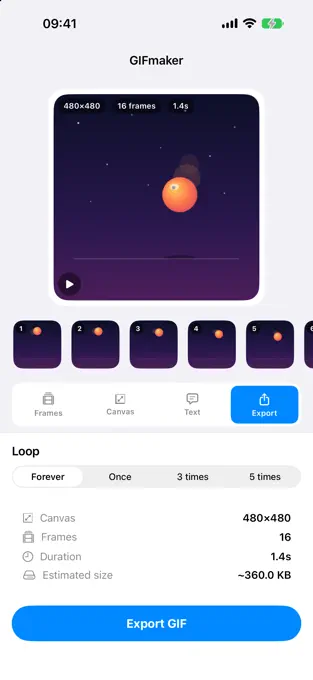
Play the complete loop, confirm the crop and pacing, then save or share the exported GIF.
Quality and file size
Keep the loop clear, short, and intentional.
A good GIF is not simply the highest-resolution export. It balances readable detail with a file size the destination can load and play smoothly.
Remove the idle beginning and ending first. A shorter source gives every later decision a cleaner foundation.
Remove repeated frames that do not change the action. Keep enough frames for smooth motion, but do not preserve every moment by default.
Use square for general sharing, portrait for vertical posts, or landscape when the action depends on width.
The most visible flaw is often the jump where the GIF restarts. Reverse or boomerang playback can help when the source has no natural return.
On-device workflow
Check privacy before importing personal media.
The current GIFmaker App Store listing says the core editing workflow runs on the iPhone, requires no account, and does not upload source media. Apple's privacy label displays Data Not Collected.
Access is used when you choose a source video or Live Photo and save the exported GIF.
You can start the creation workflow without registering for a cloud service.
Review the latest App Store privacy label before installing.
Common questions
Making GIFs on iPhone.
How do I turn a Live Photo into a GIF on iPhone?
Open the Live Photo in GIFmaker, keep the useful frames, adjust timing and playback, preview the loop, then export a real GIF. Apple's Photos app can apply Loop or Bounce, but those effects do not provide the same frame and export controls.
How do I turn an iPhone video into a GIF?
Import a short video into GIFmaker, keep the frames around the useful action, adjust timing and playback, preview the loop, then export it as a GIF.
Why is my iPhone GIF file so large?
GIF size grows with pixel dimensions, frame count, duration, and visual detail. Shorten the clip, remove redundant frames, use a smaller canvas, and avoid long high-motion scenes.
Does GIFmaker upload my video or Live Photo?
The current App Store listing says the core editing workflow runs on device, requires no account, and does not upload source media. Apple's privacy label displays Data Not Collected.
Should I use normal, reverse, or boomerang playback?
Use normal playback for actions with a natural restart, reverse for a deliberate backward effect, and boomerang when returning to the first frame makes the loop feel smoother.